
You are planning a “week 23” meeting and need to open another site to check what date that corresponds to. This back-and-forth between Google Calendar and an external calendar is easy to eliminate. The option exists natively, but it is disabled by default, which explains why so many users miss it.
ISO 8601 Standard and Week Numbering in Google Calendar
Before checking anything in the settings, one point deserves your attention. Google Calendar applies the ISO 8601 standard for numbering weeks. Specifically, week 1 of the year is the one that contains the first Thursday of January.
This rule has a direct consequence: if January 1 falls on a Friday or Saturday, it still belongs to the last week of the previous year. Week 1 does not always start on January 1, and this is a frequent source of confusion in professional exchanges.
When you share a calendar with colleagues located in a country where the week starts on Sunday (the United States, Israel, for example), the week number displayed for them may differ from yours. Google Calendar does not automatically synchronize this regional setting between shared calendars. If your team works across multiple time zones, make sure everyone uses the same start day of the week in their own settings to avoid a full week shift on a deliverable.
To understand how to display the week number on Google Calendar and distinguish between even and odd weeks, setting the start day of the week is the first step to validate.
Enabling Week Numbers on Google Calendar Web Version
The manipulation takes less than a minute on a computer. Here is the exact path.
- Open Google Calendar in your browser, then click on the gear icon at the top right and select Settings.
- In the left menu, stay on the “General” section and scroll down to the “Display Options” line.
- Check the box “Show week numbers.” The change applies immediately, without reloading the page.
The numbers then appear in the mini-calendar located on the left side of the screen, next to each line of dates. They remain visible in monthly, weekly, and custom views.
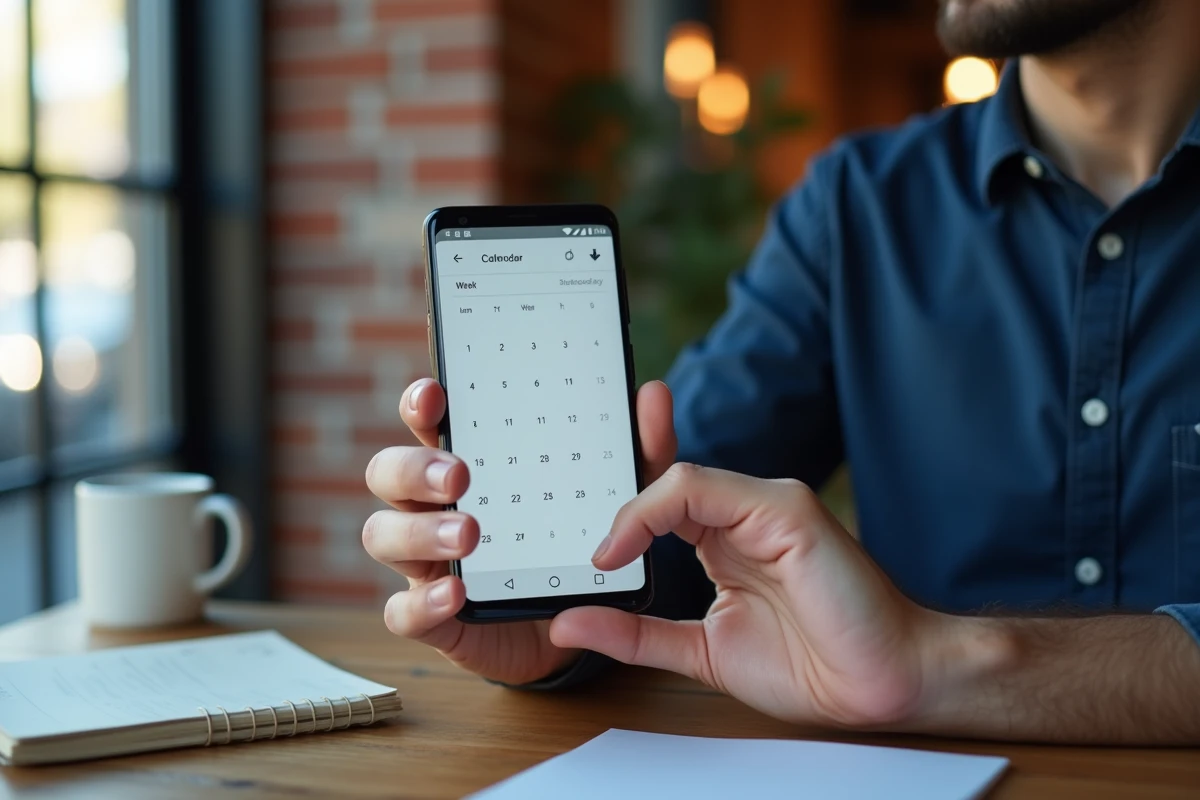
One detail to note: when you close the left sidebar to save space, the week numbers disappear along with the mini-calendar. The current week’s number remains visible next to the month displayed in the top bar, but the other weeks are no longer accessible at a glance. To find them again, simply reopen the sidebar via the hamburger menu (the three horizontal lines at the top left).
Week Number on the Google Calendar Mobile App
On Android and iOS, the procedure differs slightly from the web version. Open the Google Calendar app, tap on the menu (three horizontal lines), then on “Settings” and finally on “General.”
You will find the option “Show week number.” Enable it. The numbers will then display in the monthly view, next to each line of the grid.
The main limitation on mobile concerns the weekly and daily views: the week number is not always visible as explicitly as on the web version. The display depends on the screen size and the version of the app. On a compact screen, only the mini-calendar of the date picker shows the number when you expand it.
The mobile setting is independent of the web setting. Enabling the option on your computer does not automatically enable it on your phone, and vice versa. Be sure to configure both if you check your calendar on multiple devices.
Practical Cases Where Week Numbers Make a Difference
You have enabled the display, but what is its actual use in daily life? The most common situations go beyond simply reading the calendar.
In project management, schedules are often expressed in weeks (“delivery W14,” “acceptance W16”). With the numbers visible in Google Calendar, you can position an event or reminder directly in the correct week without mental conversion. This reduces shift errors, especially on projects that span several months.
For shared custody, agreements almost always mention even or odd weeks. Instantly spotting the parity of a week in your calendar avoids checking a third-party site each time. The displayed number is sufficient: an even number corresponds to an even week, an odd number to an odd week.
In accounting or logistics, delivery slips and purchase orders regularly reference the week number. Being able to check it without leaving Google Calendar saves time on repetitive tasks.
Common Pitfalls and Additional Settings
Two adjacent settings in Google Calendar directly influence the displayed numbering.
The first is the start day of the week. By default, Google Calendar sets it to Monday in France. If someone has changed it (intentionally or not) to Sunday, the displayed week numbers may seem shifted compared to those of your colleagues. Check this setting in “Settings > General > Start of the week.”
The second is the time zone. If the “Use device time zone” option is disabled and a distant time zone is selected, the transition from one week to another may display with an apparent shift, especially around midnight. Keep the automatic time zone enabled unless there is a specific need.
Last point: third-party calendar applications (Outlook, Fantastical, Apple Calendar) that synchronize with Google Calendar via the CalDAV protocol do not inherit the week number display setting. Each application manages this setting independently. Enable it also in the third-party app if you use one in parallel.
Displaying week numbers is a micro-setting, but it removes daily friction for anyone working with weekly schedules. Just check two boxes (one on the web, one on mobile), and you’re all set.